
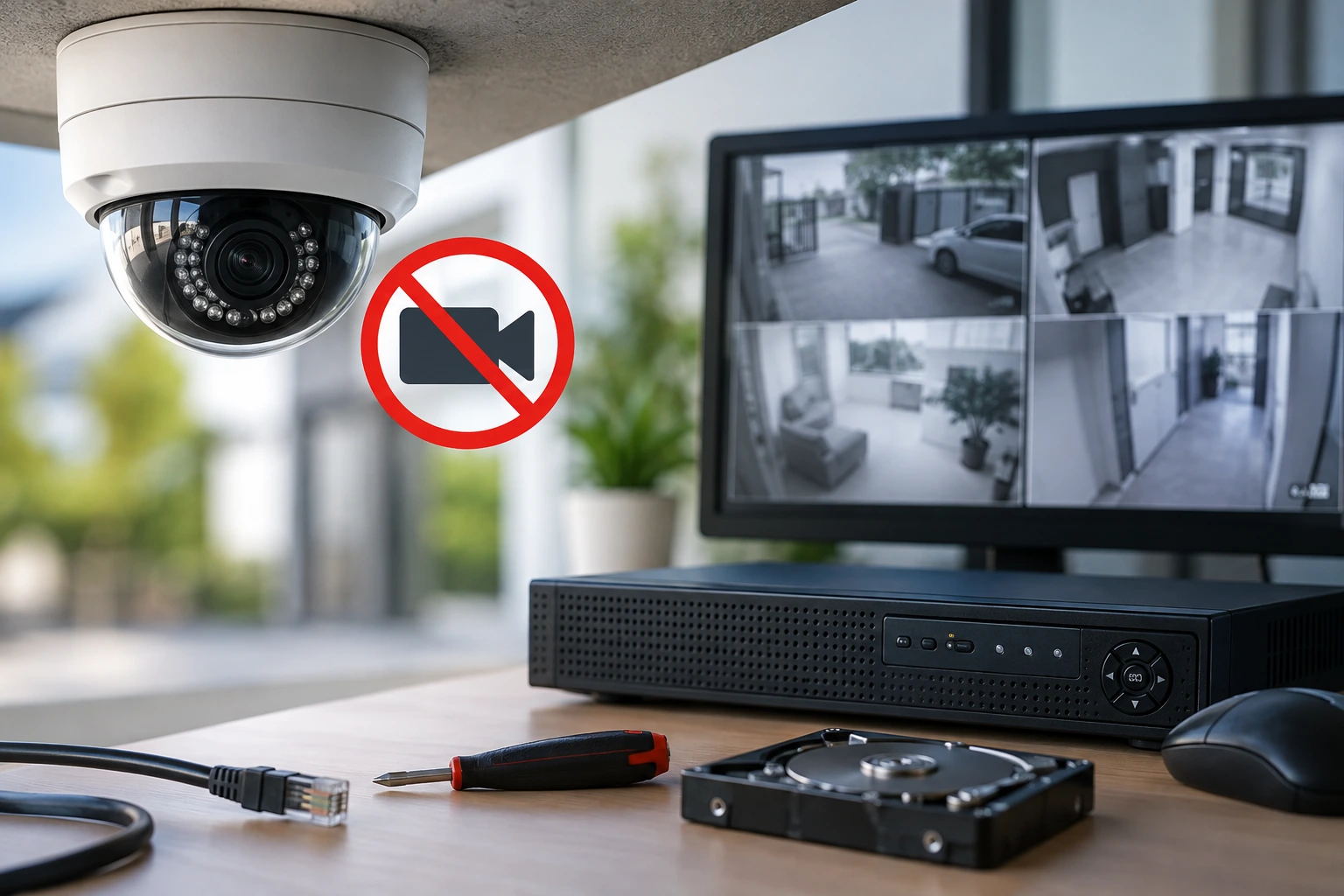
Your CCTV camera stop recording, but the live feed still looks normal. This happens more often than people think, and it does not always mean the camera is broken. In most cases, the cause is one of six things: a power problem, full or damaged storage, wrong recording settings, a network fault, an issue with the DVR or NVR, or a loose camera connection. The first step is to check whether only one camera is affected or the whole system has stopped saving footage. Understanding what triggered the issue makes troubleshooting more effective. This guide walks you through every common cause, in plain language, along with a step-by-step way to test and fix each one.
Why Does a CCTV Camera Stop Recording?
A CCTV camera may stop recording because of low or lost power, a full or failing hard drive, an incorrect recording schedule, a broken cable, a weak network connection, old firmware, or a fault in the DVR or NVR unit. When a CCTV camera stop recording problem shows up, the right fix depends on two things: is the live view still working, and are other cameras on the system also affected?
First Check: Is It One Camera or the Whole System?
This single check saves a lot of time.
- Only one camera affected: the problem is usually the camera itself, its cable, its PoE port, its power supply, or its individual channel settings.
- All cameras affected: the problem usually sits with the DVR/NVR, the storage drive, the main power supply, the recording settings, or the network.
Security camera not recording issues almost always fall into one of these two groups, so this check should always come first.
7 Common Reasons CCTV Cameras Stop Recording
Below are the seven most common faults our technicians see, ranked by how often they happen in real homes and offices.
1. Power Supply or Connection Problems
A camera can lose power while the recorder itself stays online and working fine, which is a classic cctv camera stop recording pattern. Loose power connectors, worn-out adapters, or damaged cables are common culprits. For PoE (Power over Ethernet) cameras, the fault is often the PoE switch or the specific NVR port, not the camera. A quick way to check: look at the camera’s status light and see if live view is still available. If the light is off and there is no live picture, your cctv camera is not working because of a power fault, not a settings issue.
2. Storage Is Full or the Hard Drive Has Failed
Every CCTV system needs a place to store footage, usually an HDD or SSD inside the DVR or NVR. Surveillance-grade storage is designed for the continuous write workload of CCTV systems and can be more suitable than standard desktop drives. For multi-camera setups, NVR systems provide centralized recording and management, making the recorder and its storage an important part of troubleshooting. When that drive is full or starts to fail, new recordings cannot be saved. Most systems use loop recording, meaning old footage gets overwritten automatically, but a damaged drive breaks this process. Check storage status in the DVR/NVR menu first. Avoid formatting the drive if you still need to recover older footage.
3. Incorrect Recording Schedule or Settings
Sometimes recording gets switched off by accident during setup or a firmware update. Many systems only record during set hours, which is easy to forget. Motion-based recording and continuous recording also behave differently, and mixing them up causes gaps. Go into each channel’s settings and confirm the recording mode matches what you actually want.
4. Network or Connectivity Issues
A security camera not recording issue here mainly affects IP cameras and Wi-Fi security cameras. A camera can lose contact with the NVR or cloud app because of weak Wi-Fi, a damaged Ethernet cable, a faulty network switch, or wrong IP settings. One important point people often get wrong: an internet outage does not always stop an NVR-based system from recording locally. Local recording and internet-based viewing are two separate functions, so losing internet does not mean your footage stops saving.
5. Camera, Cable, or Port Failure
Cameras are electronic devices, and like any device, they can develop a hardware fault over time. Ethernet and coaxial cables can fray, loosen, or corrode, especially outdoors. If the problem is isolated to an indoor unit, reviewing your indoor security cameras and their individual connections can help narrow down the fault. Ethernet and coaxial cables can fray, loosen, or corrode, especially outdoors. A single bad port on the DVR/NVR can also affect one channel only. Testing the camera on a different, known-working port is the fastest way to confirm whether your cctv camera is not working because of the camera itself or because of the port.
6. Firmware or Software Problems
Outdated or corrupted firmware can quietly cause recording gaps or connection drops. The recorder’s own software can also freeze or glitch temporarily. A simple restart fixes many of these short-term issues. When updating firmware, always follow the manufacturer’s official steps, since a failed update can cause bigger problems than the original fault.
7. Overheating or Hardware Failure
CCTV cameras and recorders run non-stop, all day and all night. Poor airflow, dust buildup, or an unsuitable mounting spot (direct sun, closed cabinets) can cause parts to overheat. If a camera keeps stopping and restarting on its own, that is often a sign of wear rather than a settings problem, and it may need replacement.
How to Fix CCTV Not Recording: Step-by-Step Troubleshooting
If you are searching for how to fix CCTV not recording after a cctv camera stop recording problem, work through these steps in order rather than jumping around.
- Check live view – confirm the affected camera still shows a live picture.
- Check power and connections – inspect adapters, cables, connectors, and PoE ports.
- Check DVR/NVR storage – look at drive health, free space, and any error alerts.
- Check recording settings – confirm continuous mode, motion mode, schedule, and channel setup.
- Check network connection – for IP or Wi-Fi cameras, confirm signal strength and camera status.
- Restart the system – power-cycle the camera and the recorder.
- Swap the suspect part – test the camera, cable, or port using one you know works.
CCTV Camera Shows Live View but Is Not Recording – What Does It Mean?
Live view working does not mean recording is working. These are two separate functions inside the same system. Common causes include a full or failing drive, recording turned off by mistake, a wrong schedule, incorrect channel settings, or a software glitch in the recorder.
| What You See | Likely Area to Check |
| Live view works, no playback | Recording settings, storage, channel setup |
| No live view, no recording | Power, connectivity, camera hardware |
| All cameras affected | DVR/NVR, storage, power supply |
| Only one camera affected | Camera, cable, port, or its settings |
When Should You Call a CCTV Professional?
DIY checks solve most day-to-day cctv camera stop recording faults, but some situations need a trained eye:
- Recording keeps failing even after a restart
- Repeated hard drive errors
- Multiple cameras dropping offline together
- Damaged or exposed wiring
- A faulty DVR/NVR unit
- Important footage that must not be lost
For homes and businesses in Dubai, a professional CCTV inspection can quickly confirm whether the fault sits with the camera, the recorder, the storage drive, or the network wiring, saving you from guessing and losing more footage in the process.
Frequently Asked Questions
Why is my CCTV camera not recording?
The usual causes are power loss, a full or damaged hard drive, wrong recording settings, a network fault, or a DVR/NVR problem. If your cctv camera is not working on live view too, check power first. Checking one camera against the whole system narrows it down fast.
Why is my security camera not recording but live view works?
This points to storage or recording settings, not the camera itself. Check drive space and confirm the correct recording mode is turned on.
How do I fix CCTV not recording?
Check power, storage, recording settings, and network connection, then restart the system. If the fault stays on one camera, swap its cable or port to confirm.
Can a full hard drive stop CCTV recording?
Yes. Once storage is full, older footage should overwrite automatically, but a failing drive can block this process and stop new recordings completely.
Does an internet outage stop CCTV recording?
Not always. Cloud-only cameras may lose recording, but NVR/DVR systems usually keep recording locally to their own storage even without the internet.
Conclusion
A CCTV camera stop recording issue does not automatically mean the camera is broken. Start by checking whether one camera is affected or the entire system, then work through power, storage, recording settings, network, and hardware in that order. Most faults get fixed within these steps. If the problem keeps coming back, a professional inspection can catch what a quick check might miss and stop you from losing footage you actually need.